Raspberry Pi : Digital Signage

Digital Signage

라즈베리파이에서 슬라이드쇼 구현해 보자.

py-slideshow

https://github.com/cgoldberg/py-slideshow/

pyglet 으로 이미지를 패닝, 확대 효과를 가진 슬라이드 쇼.

Screenly OSE

Screenly Open Source Edition은 디지털 시그네이지 소프트웨어 이다.

Disk images

The recommended installation method is to grab the latest disk image from here

라즈비안에서 설치

Raspbian Lite 에서 설치를 할 수 있다.

먼저

sudo apt install -y network-manager

1
2
3
4
5
6
7
8
9
10
11
$ bash <(curl -sL https://www.screenly.io/install-ose.sh)
_____ __ ____ _____ ______
/ ___/_____________ ___ ____ / /_ __ / __ \/ ___// ____/
\__ \/ ___/ ___/ _ \/ _ \/ __ \/ / / / / / / / /\__ \/ __/
___/ / /__/ / / __/ __/ / / / / /_/ / / /_/ /___/ / /___
/____/\___/_/ \___/\___/_/ /_/_/\__, / \____//____/_____/
/____/
Screenly OSE requires a dedicated Raspberry Pi / SD card.
You will not be able to use the regular desktop environment once installed.

Do you still want to continue? (y/N)
1
Would you like to use the experimental branch? It contains the last major changes, such as the new browser and migrating to Docker (y/N)

It looks like NetworkManager is not installed. Please install it by running ‘sudo apt install -y network-manager’ and then re-run the installation.

1
Would you like to perform a full system upgrade as well? (y/N)

설치를 시작하면 15분 이상이 소요된다.
This installation will take 15 minutes to several hours, depending on variables such as:

1
2
Installation completed.
You need to reboot the system for the installation to complete. Would you like to reboot now? (y/N)

pipresent

python2 기반이고, 실행이 안됐다.

https://pipresents.wordpress.com

https://github.com/KenT2/pipresents-beep

Requirements
  • must use the latest version of Raspbian Stretch with Desktop (not the Lite version)
  • must be run from the PIXEL desktop.
  • must be installed and run from user Pi

install

required packages

1
2
sudo apt install python-imaging python-pil.imagetk python-pexpect
sudo apt install unclutter mplayer uzbl

optional packages

sudo pip install evdev (if you are using the input device I/O plugin)
sudo apt-get install mpg123 (for .mp3 beeps)

1
wget https://github.com/KenT2/pipresents-beep/tarball/master -O - | tar xz

Dead-simple Digital menu

https://github.com/angryrancor/ezdmb

Raspberry Pi 3 64bit OS openSUSE: Service 관리

Upgrade OpenSUSE LEAP 42.2 to LEAP 15

https://en.opensuse.org/SDB:System_upgrade

OpenSUSE LEAP 42.2를 LEAP 15.0으로 업그레이드 하려고 한다.

[그림. 지원 중단 배포본 (OpenSUSE)]

Upgrade

Update repository

다음 명령으로 현재 배포본의 Repository Url이 활성화 되어 있는지 확인한다.

1
2
3
4
5
6
7
8
# zypper repos --uri

Repository priorities are without effect. All enabled repositories share the same priority.

# | Alias | Name | Enabled | GPG Check | Refresh | URI
--+-----------------------------------+-----------------------------------+---------+-----------+---------+----------------------------------------------------------------------------
1 | openSUSE-Ports-Leap-42.2-Update | openSUSE-Ports-Leap-42.2-Update | Yes | (r ) Yes | Yes | http://download.opensuse.org/ports/update/42.2/
2 | openSUSE-Ports-Leap-42.2-repo-oss | openSUSE-Ports-Leap-42.2-repo-oss | Yes | (r ) Yes | Yes | http://download.opensuse.org/ports/aarch64/distribution/leap/42.2/repo/oss/

42.2 저장소 백업하고,

1
# cp -Rv /etc/zypp/repos.d /etc/zypp/repos.d.Old

42.2 를 15.0 으로 변경하자,

1
# sed -i 's/42.2/15.0/g' /etc/zypp/repos.d/*

업데이트 저장소 위치가 다르기 때문에 zypper repos --uri 에서 openSUSE-Ports-Leap-15.2-Update 를 삭제한다.

1
zypper rr 1

그리고 openSUSE-Ports-Leap-15.0-Update 를 추가한다.

1
zypper addrepo --check --refresh --name 'openSUSE-Leap-15.0-Update' http://download.opensuse.org/update/leap/15.0/oss/ repo-update

15.2 저장소가 제대로 들어갔는지 확인한다.

1
2
3
4
5
6
7
# zypper repos --uri
Repository priorities are without effect. All enabled repositories share the same priority.

# | Alias | Name | Enabled | GPG Check | Refresh | URI
--+-----------------------------------+-----------------------------------+---------+-----------+---------+----------------------------------------------------------------------------
1 | openSUSE-Ports-Leap-15.0-repo-oss | openSUSE-Ports-Leap-15.0-repo-oss | Yes | (r ) Yes | Yes | http://download.opensuse.org/ports/aarch64/distribution/leap/15.0/repo/oss/
2 | repo-update | openSUSE-Leap-15.0-Update | Yes | ( p) Yes | Yes | http://download.opensuse.org/update/leap/15.0/oss/

결과에서 repo-update 가 Enabled 컴럼이 Yes 인지 확인한다. 만약 No 라면 다음 명령으로 활성화 한다.

1
zypper modifyrepo --enable repo-update

Update repository

zypper ref

Distribution Upgrade

1
2
3
4
5
6
7
8
# zypper dup
...

613 packages to upgrade, 170 to downgrade, 340 new, 103 to remove, 6 to change
arch.
Overall download size: 658.0 MiB. Already cached: 0 B. After the operation,
additional 774.1 MiB will be used.
Continue? [y/n/...? shows all options] (y): y

homepi64:~ # reboot
[11840.081284] reboot: Restarting system
MMC: mmc@7e202000: 0, mmc@7e300000: 1
Loading Environment from FAT… *** Warning - bad CRC, using default environment

진행중 42.2와 충돌하는 패키지가 표시되는데 모둔 1로 설치했다.

1
2
3
4
5
6
7
8
9
10
11
12
4 Problems:
Problem: nothing provides tar = 1.30 needed by tar-lang-1.30-lp150.2.3.2.noarch
Problem: nothing provides python3-dbus-python needed by snapper-zypp-plugin-0.5.4-lp150.3.3.1.noarch
Problem: nothing provides libgphoto2-6 = 2.5.18 needed by libgphoto2-6-lang-2.5.18-lp150.2.3.1.noarch
Problem: nothing provides gpg2 = 2.2.5 needed by gpg2-lang-2.2.5-lp150.3.3.1.noarch

Problem: nothing provides tar = 1.30 needed by tar-lang-1.30-lp150.2.3.2.noarch
Solution 1: deinstallation of tar-lang-1.27.1-11.1.noarch
Solution 2: keep obsolete tar-lang-1.27.1-11.1.noarch
Solution 3: break tar-lang-1.30-lp150.2.3.2.noarch by ignoring some of its dependencies

Choose from above solutions by number or skip, retry or cancel [1/2/3/s/r/c] (c):1

재시동

업그레이드를 설치한 후에 재시동 하면 약 5분 정도 펌웨어 등을 설치하는 과정을 거친다. 로그인해서 버전을 확인해 보자

qkboo@homepi64:~> uname -a
Linux homepi64 4.4.104-18.44-default #1 SMP Thu Jan 4 08:07:55 UTC 2018 (05a9de6) aarch64 aarch64 aarch64 GNU/Linux

~> uname -a
Linux homepi64 4.4.104-18.44-default #1 SMP Thu Jan 4 08:07:55 UTC 2018 (05a9de6) aarch64 aarch64 aarch64 GNU/Linux

https://en.opensuse.org/SDB:Find_openSUSE_version

Getting Started `firewalld`

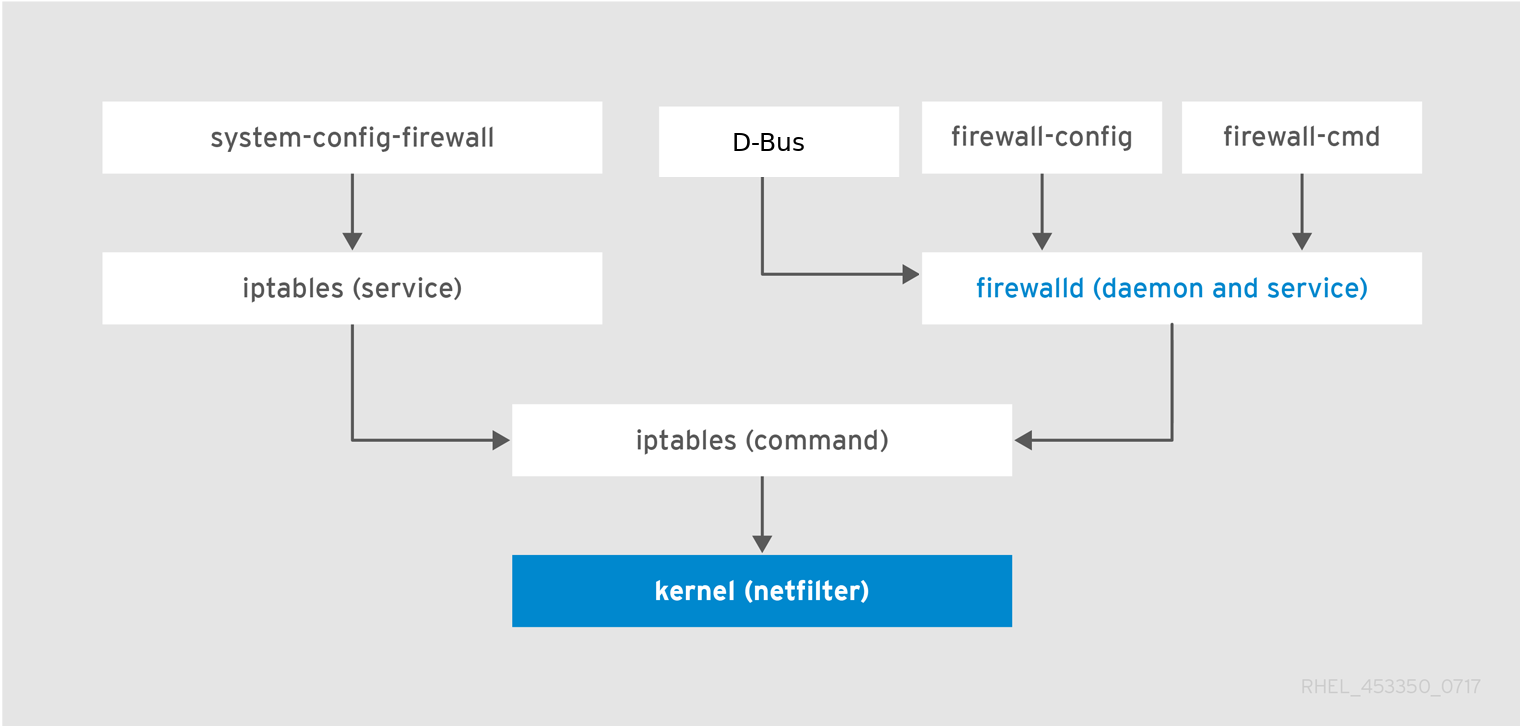
RedHat, CentOS, Fedora 배포본 등에서 표준 방화벽 인터페이스로 제공되는 최신 FirewallD 사용을 시작해 보자. firewalld 패키지 설치는 각 배포본의 방법으로 설치하면 된다.

여기서는 OpenSUSE, Armbian 배포본을 설치한 시스템에서 firewalld 방화벽을 구성하고 설정하는 과정을 요약 정리했다.

자세히 보기

Raspberry Pi : Upgrade OpenSUSE LEAP 42.2 to 42.3

Raspberry Pi 3 에 설치해 사용중이던 openSUSE LEAP 42.2의 지원이 종료되어, 2019년가지 지원하는 LEAP 42.3으로 업그레이드하는 과정을 정리했다.

openSUSE는 LEAP 15.0으로 최신 버전으로 배포하고 있다. 42.2에서 15.0으로 바로 업그레이드시 내가 해결 못하는 문제가 생겨서 42.3으로 업그레이드 했다.

자세히 보기

Naver ncloud 설정

ncloud 서비스

sudoer 설정

새 사용자를 추가하고 suder 로 등록한 후에 사용한다. 우분투/데비안 계열 새 사용자 추가는 Odroid Install 문서를 참고한다.

새 사용자 등록

adduser 추가할 사용자에 대한 정보를 하나씩 묻고, 사용자 홈 디렉토리가 생성된다. 추가한 사용자에 대한 /etc/passwd, /etc/shadow, /etc/group and /etc/gshadow 편집이 된다

추가하고 패스워드를 입력한다.

1
2
# adduser USERNAME
# sudo passwd USERNAME

그리고 suder로 등록해 준다.

sudoer 등록

usermod 혹은 visudo 를 사용할 수 있다.

1
# usermod -aG sudo USERNAME

hostname 확인

hostname 명령에 따라 현재 호스트 이름이 /etc/hosts 혹은 dns resolver에서 검색되야 한다.

1
2
$ sudo systemcgl status nginx
sudo: unable to resolve host ubuntu-84

위 같은 경고가 나타난다면 호스트 이름을 /etc/hosts 에 등록해 준다.

ssh

서버에

1
$ ssh-keygen -t rsa -b 4096 -C "USER@localhost"

위 2 과정을 아래 명령 한 줄로 복사->붙여넣기를 동시에 할 수 있다.

클라이언트:

1
cat ~/.ssh/id_rsa.pub | ssh <USERNAME>@<IP-ADDRESS> 'cat >> .ssh/authorized_keys'

mongod-org 설치

커뮤티티에디션 설치

네이버 NCloud에서 Micro server를 하나 생성한 후에, MongoDB Community Edition을 설치했고, ncloud의 Ubuntu 16.01 이미지로 서버를 생성한 후에 업그레이드해서 16.04.4 LTS 버전에서 설치했다.

설정

mongodb 설정
mongodb auth

현재 실행중인 mongod 를 종료한다.

sudo systemctl stop mongod.service

MongoDB 설정
Mongo Database를 사용하기 위해서 데이터 파일 위치, 로그, 포트, Ip 주소 등에 대한 구성을 mongod.conf 에서 할 수 있다. 수정된 구성이 작동하는지 mongo 클라이언트로 접속해서 테스트한다.

mongod.conf

/etc/mongod.conf 파일에 인증을 제외한 데이터 디렉토리, bindIp, 로그 부분만 설정한다.

1
2
3
4
5
6
7
8
9
10
11
12
13
14
15
  dbPath: /data/mongodata/
journal:
enabled: true

systemLog:
destination: file
logAppend: true
path: /var/log/mongodb/mongod.log

processManagement:
fork: true

net:
port: 27017
bindIp: 0.0.0.0

설정을 저장하고 명령 라인에서 MongoDB를 다시 시작한 후에 mongo client로 접속한다.

모든 인터페이스에 db 접속을 허용하면 bindIpAll: true 를 사용한다.

1
$ sudo mongod --port 27017 --dbpath /var/lib/mongodb

이어서 클라이언트로 데이터베이스에 접속한다.접속에 성공하면 > 프롬프트가 나온다.

1
2
$mongo
>

admin 계정

mongod 에서 데이터베이스 및 사용자를 관리할 admin 이란 관리자를 추가하자

1
2
3
> use admin
switched to db admin
>

관자자의 권한과 역할을 선언한다.

1
2
3
4
5
6
7
8
>db.createUser(
{
user:'admin',
pwd:'****',
roles:['userAdminAnyDatabase']
}
)
Successfully added user: { "user" : "admin", "roles" : [ "userAdminAnyDatabase" ] }

사용자의 role 을 변경,

1
2
3
4
5
6
7
8
9
10
11
12
13
14
15
16
17
18
19
> db.grantRolesToUser( 'admin', [{role: 'userAdmin', db:'admin'}])
> db.getUsers()
[
{
"_id" : "admin.admin",
"user" : "admin",
"db" : "admin",
"roles" : [
{
"role" : "userAdmin",
"db" : "admin"
},
{
"role" : "userAdminAnyDatabase",
"db" : "admin"
}
]
}
]

관리자 admin 계정을 admin 데이터베이스에 추가한 후에 mongo client로 admin 계정으로 로그인해서 …

터미널에서 시작한 mongod 를 종료한다.

수동으로 mongod 를 시작하면 root 계정으로 데이터 파일이 생성된다. systemctl로 서비스 시작 전에 data 폴더 퍼미션을 맞춰준다.

Directory permissions
로그 디렉토리 /var/log/mongo 그리고 데이터 디렉토리 /data/mongodata 라면 해당 디렉토리에 몽고디비 사용자가 쓸 수 있는 퍼미션을 준다.

1
2
$ sudo chown mongo.daemon /var/log/mongodb
$ sudo chown mongodb.mongodb /data/mongodata

데이터베이스 사용자 추가

데이터베이스를 생성하고 해당 데이터베이스를 접속하는 사용자 계정을 추가하자.

수동으로 접근제어 –auth 옵션으로 데이터베이스를 시작하면, mongo 클리이언트 로그인시 -u , -p 와 –authenticationDatabase 를 지정해 주어야 한다.

1
$ mongo --port 27017 -u "admin" -p "****" --authenticationDatabase "admin"

The following operation creates accountUser in the products database and gives the user the readWrite and dbAdmin roles.

1
2
3
4
5
6
7
8
9
use products
db.createUser(
{
user: "accountUser",
pwd: "password",
roles: [ "readWrite", "dbAdmin" ]
}
)```

Raspberry Pi : Raspbian 설치준비

이 글은 Raspberry Pi Programming 과정을 진행하며 강의한 자료를 바탕으로 공개강의를 위한 텍스트로 슬라이드쉐어, blog.thinkbee.kr 그리고 실제 과정을 영상 youtube 채널에 공개할 목적으로 작성한다.

Install Rasbperry Pi 글타래는 아래 같이 구성되며 간단한 소개, Serial console, OS 설치, Service 구성 및 사용에 대해 작성했다.

  1. Raspberry Pi 설치준비
  2. Install Raspbian OS
  3. Managing Service daemon
  4. Basic OS Security for Server
  5. Install & Configuration - Nginx, Node JS, Jupyter
자세히 보기

Hammerspoon 사용해 데스크탑 자동화

Hammerspoon

Hammerspoon 은 macOS의 데스크탑 자동화를 위해 Lua scipt 를 사용하는 엔진이다. Hammerspoon을 다운받아 설치하고 에 있는 Getting Started 를 보고 바로 시작할 수 있다.

설치

최신 릴리즈를 Latest Hammerspoon 에서 다운받아 Application 폴더로 옮긴다.

그리고 Hammerspoon을 실행하면 Status bar에 나타난다.

Hammerspoon

[그림. Hammerspoon]

환경설정 / 보안 및 개인정보 에서 손쉬운 사용에 hammerspoon을 추가해 주고 활성화 한다.

Hammerspoon

[그림. 보안 및 개인정보에서 제어 허용]

Open config

Hammerspoon 메뉴에서 Open Config 를 실행하면 시스템의 .lua 확장자를 열 수 있는 텍스트 에디터가 실행된다. 이곳에 Getting Started 의 샘플 스크립을 복사해서 바로 사용해 볼 수 있다.

1
2
3
4
5
6
7
8
9
10
11
12
13
14
15
16
17
18
19
20
21
22
23
24
25
26
27
28
29
30
31
32
33
34
35
36
37
38
39
40
41
42
43
44
45
46
47
48
49
50
51
52
53
54
55
56
57
58
59
60
61
62
63
64
65
66
67
hs.hotkey.bind({"cmd", "alt", "ctrl"}, "Y", function()
local win = hs.window.focusedWindow()
local f = win:frame()

f.x = f.x - 10
f.y = f.y - 10
win:setFrame(f)
end)

hs.hotkey.bind({"cmd", "alt", "ctrl"}, "K", function()
local win = hs.window.focusedWindow()
local f = win:frame()

f.y = f.y - 10
win:setFrame(f)
end)

hs.hotkey.bind({"cmd", "alt", "ctrl"}, "U", function()
local win = hs.window.focusedWindow()
local f = win:frame()

f.x = f.x + 10
f.y = f.y - 10
win:setFrame(f)
end)

hs.hotkey.bind({"cmd", "alt", "ctrl"}, "H", function()
local win = hs.window.focusedWindow()
local f = win:frame()

f.x = f.x - 10
win:setFrame(f)
end)

hs.hotkey.bind({"cmd", "alt", "ctrl"}, "L", function()
local win = hs.window.focusedWindow()
local f = win:frame()

f.x = f.x + 10
win:setFrame(f)
end)

hs.hotkey.bind({"cmd", "alt", "ctrl"}, "B", function()
local win = hs.window.focusedWindow()
local f = win:frame()

f.x = f.x - 10
f.y = f.y + 10
win:setFrame(f)
end)

hs.hotkey.bind({"cmd", "alt", "ctrl"}, "J", function()
local win = hs.window.focusedWindow()
local f = win:frame()

f.y = f.y + 10
win:setFrame(f)
end)

hs.hotkey.bind({"cmd", "alt", "ctrl"}, "N", function()
local win = hs.window.focusedWindow()
local f = win:frame()

f.x = f.x + 10
f.y = f.y + 10
win:setFrame(f)
end)

init.lua 에 스크립을 작성하고 저장한 후에 Hammerspoon 메뉴에서 Reload config를 실행하고 Console… 메뉴로 스크립 활성화를 확인할 수 있다.

Window Resizing

*Cmd+Opt+Ctrl+F** 키로 윈도우를 고정된 크기로 변경할 수 있게 사용하고 있다.

1
2
3
4
5
6
7
8
9
10
11
12
13
14
15
16
17
18
19
20
21
22
23
24
25
26
27
28
29
30
31
32
33
34
35
36
37
38
39
40
41
42
43
44
45
46
47
48
49
50
51
52
53
54
55
56
57
58
59
60
61
62
63
64
65
66
67
68
69
70
71
72
73
74
75
76
77
78
79
80
81
82
--[[
Window Resizing
--]]

-- Full screen
hs.hotkey.bind({"cmd", "alt", "ctrl"}, "F", function()
local win = hs.window.focusedWindow()
local f = win:frame()
local screen = win:screen()
local max = screen:frame()

f.x = max.x
f.y = max.y
f.w = max.w
f.h = max.h
win:setFrame(f)
end)

-- 4:3 ratio: XGA, 1280x960, SXGA+, UGA
-- Resizing: XGA 1024-768
hs.hotkey.bind({"cmd", "alt", "ctrl"}, "F1", function()
local win = hs.window.focusedWindow()
local f = win:frame()
local screen = win:screen()
local max = screen:frame()

f.x = max.x
f.y = max.y
f.w = 1024
f.h = 768
win:setFrame(f)
hs.notify.new({title="Resizing...", informativeText="1024x768"}):send()
end)


-- Resize: 1280x960 (1024)
hs.hotkey.bind({"cmd", "alt", "ctrl"}, "F2", function()
local win = hs.window.focusedWindow()
local f = win:frame()
local screen = win:screen()
local max = screen:frame()

f.x = max.x
f.y = max.y
f.w = 1280
f.h = 960
win:setFrame(f)

hs.notify.new({title="Resizing...", informativeText="1280x960"}):send()
end)

-- Resize: SXGA+ 1400x1050
hs.hotkey.bind({"cmd", "alt", "ctrl"}, "F3", function()
local win = hs.window.focusedWindow()
local f = win:frame()
local screen = win:screen()
local max = screen:frame()

f.x = max.x
f.y = max.y
f.w = 1400
f.h = 1050
win:setFrame(f)

hs.notify.new({title="Resizing...", informativeText="1400x1050"}):send()
end)

-- Resize: 1920x1080
hs.hotkey.bind({"cmd", "alt", "ctrl"}, "F4", function()
local win = hs.window.focusedWindow()
local f = win:frame()
local screen = win:screen()
local max = screen:frame()

f.x = max.x
f.y = max.y
f.w = 1920
f.h = 1080
win:setFrame(f)

hs.notify.new({title="Resizing...", informativeText="1920x1080"}):send()
end)

Aerosnap

https://blog.jverkamp.com/2016/02/08/duplicating-aerosnap-on-osx-with-hammerspoon/

iptables Firewall on Ubuntu/Debian

일반적인 리눅스 배포본의 기본 방화벽인 iptables를 쉽게 사용할 수 있는 ufw 를 사용해서 리눅스에 방화벽을 구축하는 방법을 기술하고 있다.

iptables

iptables로 당연히 방화벽을 관리할 수 있다.

iptables -L 플래그

방화벽 룰, 액션에 대해 INPUT, OUTPUT, FORWARD 정보를 볼 수 있다.

1
$ sudo iptables -L

-S 플래그

우리 대신 사용 하 여 각 규칙 및 정책을 사용 하는 데 필요한 명령을 반영 하는 형식으로 출력을 볼 수 있는

1
$ sudo iptables -S

규칙을 모두 리플레시 할 수 있다

1
sudo iptables -F

방화벽

모든 규칙은 DENY -> 일부 허용 순서로 한다. 그래서 TCP 로 1번부터 65526번 포트까지 다 막는 방법이다. 만약 UDP도 막고싶다면,

1
sudo iptables -A INPUT -p tcp --dport 1:65526 -j DROP

ssh 22 자리는 포트

1
2
sudo iptables -I INPUT -p tcp --dport 22 -j ACCEPT
sudo iptables -I OUTPUT -p tcp --sport 22 -j ACCEPT

혹은 ip address 를 기반으로 설정할 수 있다.

1
2
iptables -I INPUT -p tcp --dport 22 -s 222.222.222.222 -j ACCEPT
iptables -I OUTUT -p tcp --dport 22 -d 222.222.222.222 -j ACCEPT

8080번으로 들어오는 포트를 80 번으로 바꾸기

1
2
3
sudo iptables -A INPUT -i eth0 -p tcp --dport 80 -j ACCEPT
sudo iptables -A INPUT -i eth0 -p tcp --dport 8080 -j ACCEPT
sudo iptables -A PREROUTING -t nat -i eth0 -p tcp --dport 80 -j REDIRECT --to-port 8080

iptables정보를 저장하고 재부팅 이후에도 동작하도록 설정함. <= vi 로 열어서 맨 마지막에 추가함.

1
2
3
sudo sh -c "iptables-save > /backup/iptables.rules"
sudo vi /etc/network/interfaces
pre-up iptables-restore < /etc/iptables.rules

Web

기본 httpd 사용을 위한 80번 포트 개방과, node.js, python 등 실습을 위한 8080번 포트를 열어 주기 위해서 /etc/sysconfig/iptables 에 아래와 같이 입력한다.

1
2
3
4
5
-A INPUT -p tcp -m tcp --dport 80 -j ACCEPT
-A OUTPUT -p tcp -m tcp --dport 80 -j ACCEPT
-A INPUT -p tcp -m tcp --dport 8080 -j ACCEPT
-A OUTPUT -p tcp -m tcp --dport 8080 -j ACCEPT
-A INPUT -j REJECT --reject-with icmp-host-prohibited

iptables 규칙을 만들 때는 순서가 매우 중요하다.
이 때 주의해야 할 것은 위의 4개 코드가 빨간 색의 코드보다 반드시 위에 적혀 있어야 한다.

예를 들어 만일 chain에서 로컬 192.168.100.0/24 서브넷에서 들어오는 모든 패킷을 drop하도록 지정한 후 (drop 하도록 지정된 서브넷에 포함되는) 192.168.100.13에서 들어오는 패킷을 모드 허용하는 chain (-A)을 그 후에 추가하면 뒤에 추가된 추가 규칙이 무시된다.
먼저 192.168.100.13를 허용하는 규칙을 설정한 후 서브넷을 drop하는 규칙을 설정해야한다.

이후에

service iptables restart

명령어를 실행해주면 2개의 포트가 열러서 정상적으로 외부접속이 가능해지는 것을 확인할 수 있다.

로그에 있는 IP 목록을 출력

1
egrep -o '[0-9]+\.[0-9]+\.[0-9]+\.[0-9]+' | sort -u

Check blocked ip addresses

iptables 명령으로 막혀있는 ip address를 출력해 보자. [^3]

1
$ sudo iptables -L -n --line
1
2
$ sudo iptables -L INPUT -v -n
08:43:89:08:00:45:00:00:3c:97:2b:40:00:34:06:4d:8b SRC=90.202.157.25 DST=220.121.141.168 LEN=60 TOS=0x│Chain INPUT (policy DROP 48 packets, 2312 bytes

참조

[^3]: Check blocked IP in iptables

openSUSE: Network 관리

Network

yast 명령으로 네트워크 구성을 수정할 수 있다. 실제 네트워크 관련 프레임워크는 wicked 를 사용한다.

https://www.suse.com/documentation/sles11/book_sle_admin/data/sec_yast_ncurses_commands.html

net-tools

기존 ifconfig 가 deprecate 되서 ip 명령을 사용한다. [^2]

그리고 ip 명령 예제를 참고해

1
2
3
ip a
ip address
ip link

IP

GUI에서 YaSt 도구를 사용하면 쉽게 설정할 수 있다. 터미널에서는 wicked 시스템에 따라서 네트워크를 구성한다.

https://doc.opensuse.org/documentation/leap/reference/html/book.opensuse.reference/cha.basicnet.html#sec.basicnet.manconf

타 리눅스 배포본에서 사용하는 방법의 구성 설정 파일은 /etc/sysconfig/network/ifcfg-[DEVICE] 이다. *[DEVICE]*는 사용할 인터페이스 이름이다.

1
2
3
4
BOOTPROTO=static
ONBOOT=yes
IPADDR=192.168.1.10
LABEL="System eth0"

Gateway는 /etc/sysconfig/network/routes 파일에 다음 같이 구성해 준다.[^4]

1
default gatewayaddr 192.168.1.1

DNS는 /etc/resolv.conf 를 참조하는데 yast 로 변경할 수 있다.

1
yast dns edit nameserver1=192.168.1.1

https://doc.opensuse.org

1
sudo ip link set eth0 up